A form task moves through four statuses: New, In progress, Review and Done. The status decides whether the form can be filled in or only read.
Open the task
In the project, stay on Overview and click the Tasks tab. Click the form task, then click Task at the top of the side panel to open the form full screen.
The status sits next to the task’s name. Click it to see the steps you can take from here.

Start the task
While a task is New, the form shows its fields but can’t be filled in. To start work:
- Click the status and choose Move to In Progress.
- Click Start to confirm.
If the project is still New, starting its first task moves the project to In progress as well.
Fill in the form
Once the task is In progress, the fields are open. Type into text and number fields, pick dates from the calendar, tick boxes and choose from dropdowns. Your entries are saved as you go, so you can leave and come back later.

To change the form itself, for example to add or remove fields, click Edit form.
Send it to review
When the form is complete, click the status and choose Send to review. The form becomes read-only, so the reviewer sees exactly what was entered.
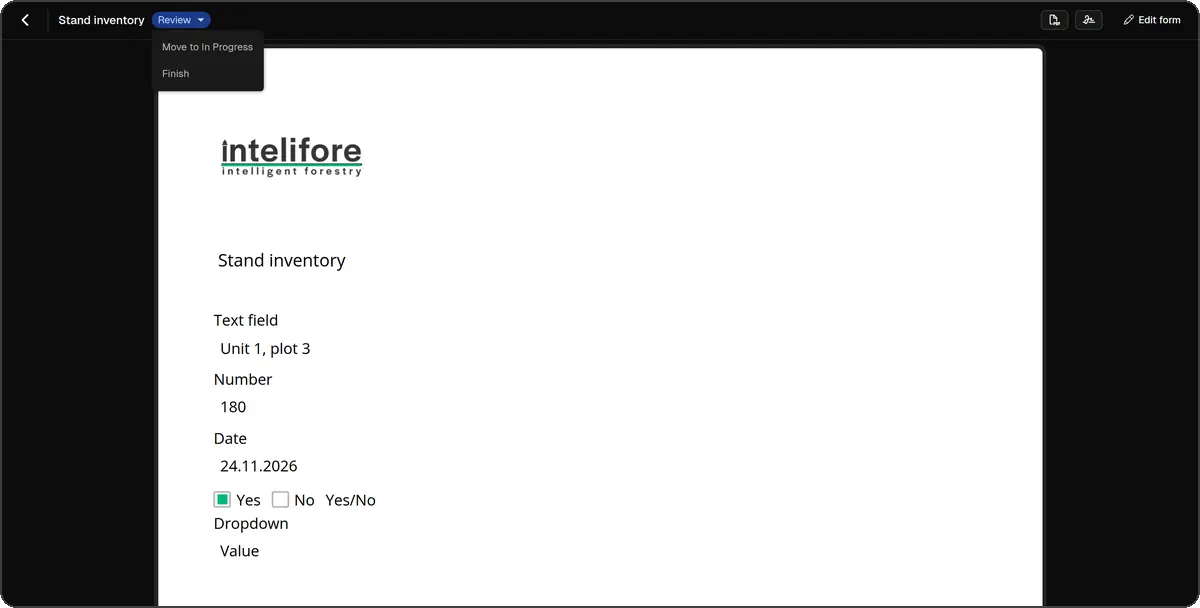
While the task is in review you can:
- Export the form as a PDF with the PDF button at the top right.
- Sign the form with the signature button next to it.
- Send it back for changes by choosing Move to In Progress.
If you click Edit form on a task in review, Intelifore warns you that editing moves the task back to In progress.
Finish the task
When the review is done, click the status and choose Finish. The task is marked Done and the form stays read-only. If something still needs fixing, open the status menu again to move the task back to In progress or to review.