A project holds one piece of work: its area on the map, its tasks and forms, its data and its documents. Click Add project on the dashboard to open the New project wizard. It has five steps. Each step saves as you go, but the project appears on your dashboard only after the last step.
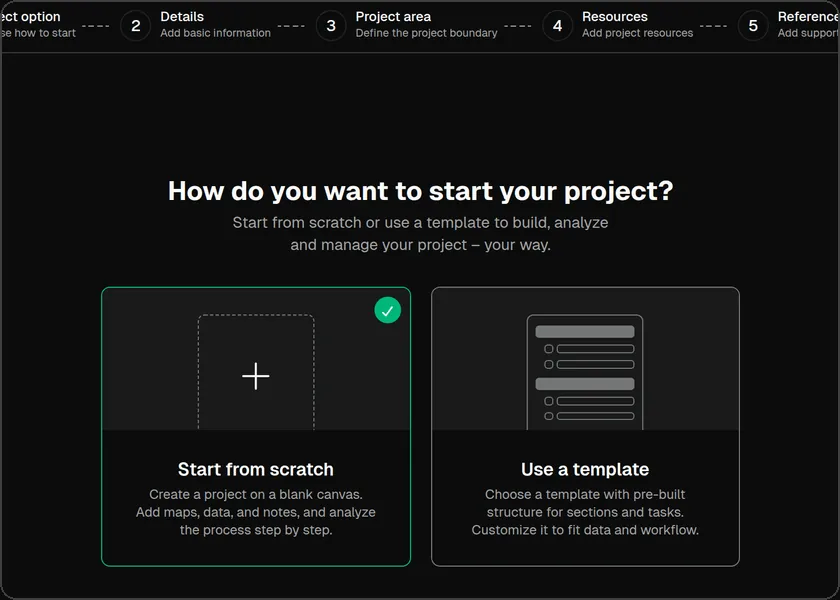
1. Choose how to start
Pick Start from scratch for a blank project, or Use a template to copy the sections and tasks of a published project template. Then click Continue.
2. Add the details
Enter the Project Name, an optional Description, and the Start date and End date. Under Share with, choose Only me, My team, Others or Public. Use Add member to add people to the project.

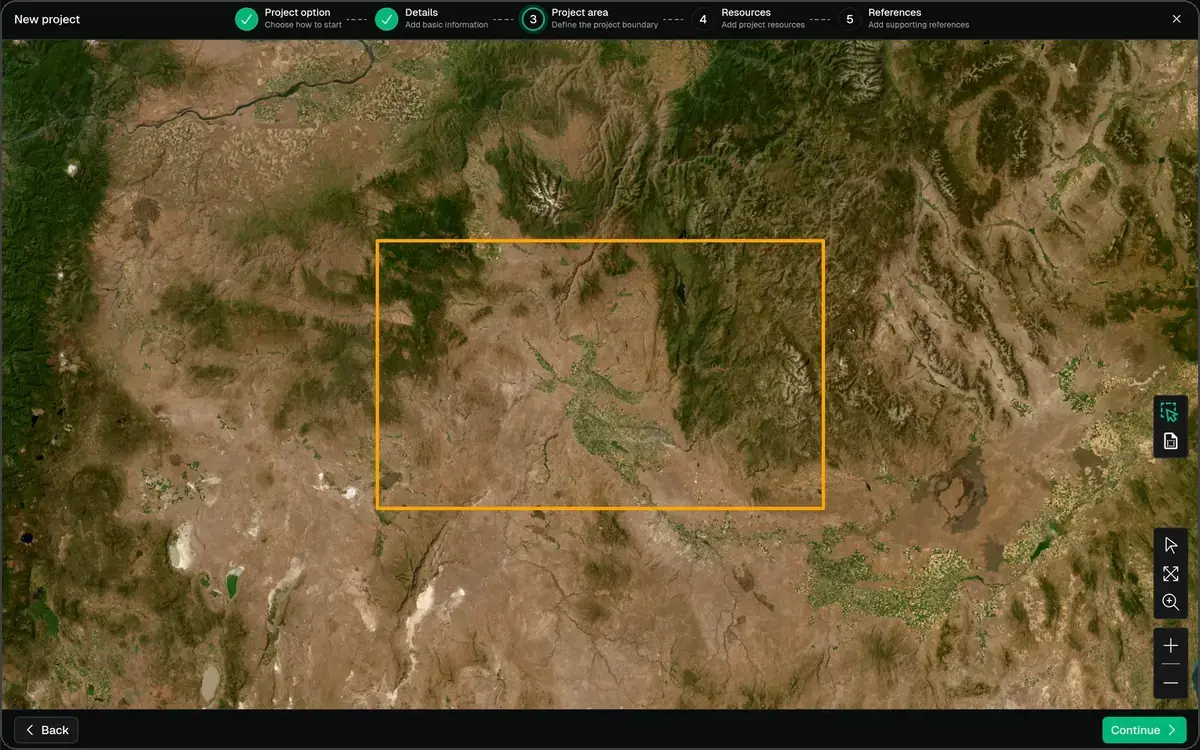
3. Set the project area
Pick the rectangle tool on the right edge of the map, click one corner of your area, then click the opposite corner. You can also load a boundary file instead (GeoJSON, KML or a zipped shapefile). Continue stays disabled until the area is set.
4. Add resources
Add maps, datasets and files from your Data Library. This step is optional.
5. Add references
Attach supporting references, such as reports and PDFs, with Add Reference. This step is optional. Click Create project to finish.
Your new project
You see “Project created successfully!” and the project’s Dashboard opens.
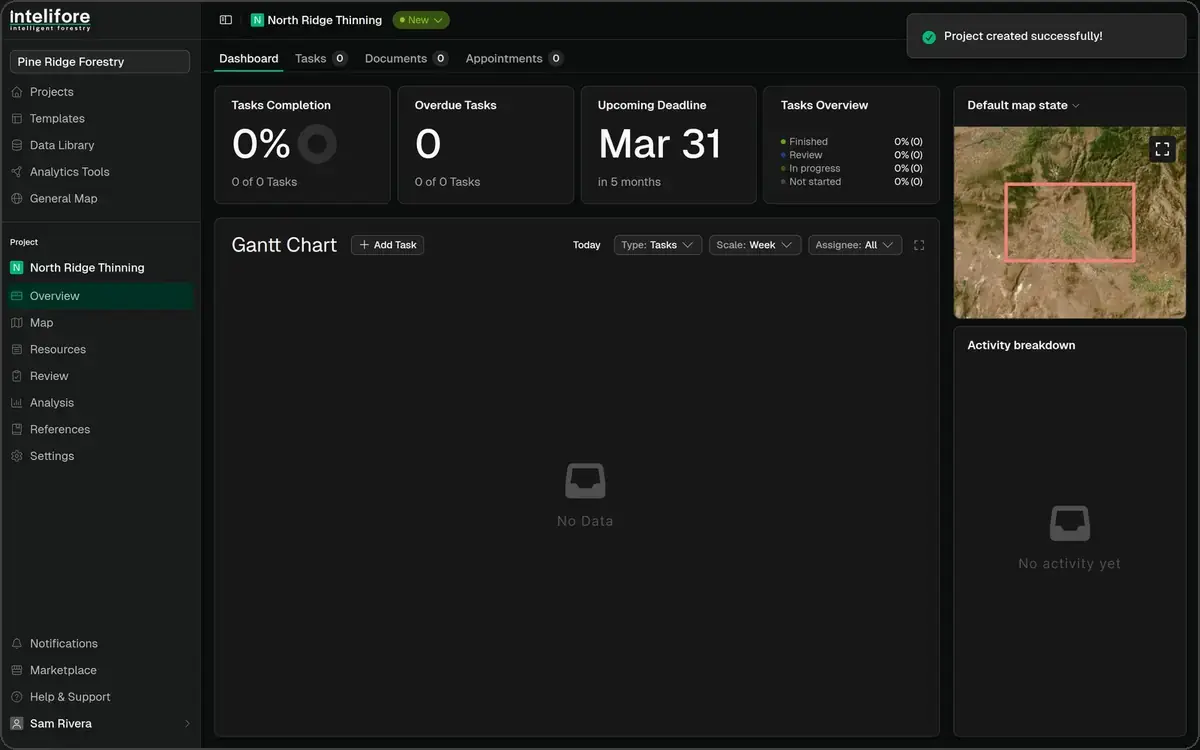
Inside a project, three tabs carry the day-to-day work:
Tasks hold the forms your team fills in to collect information.
Documents gather completed forms and uploaded PDFs into the project’s documentation.
Appointments list meetings and events for the project.
Deleted a project by mistake? Restore it from Trash in the menu under your name.