Every file a project uses lives in its Resources. Upload your own files there, or add datasets your team keeps in the Data Library and the datasets Intelifore provides.
Upload a file
Open the project and click Resources in the sidebar.
Click Add, then Upload, and choose a file. The upload starts straight away.
Wait for the file to appear in the list. Map files are converted for the map first, so large ones take a moment.

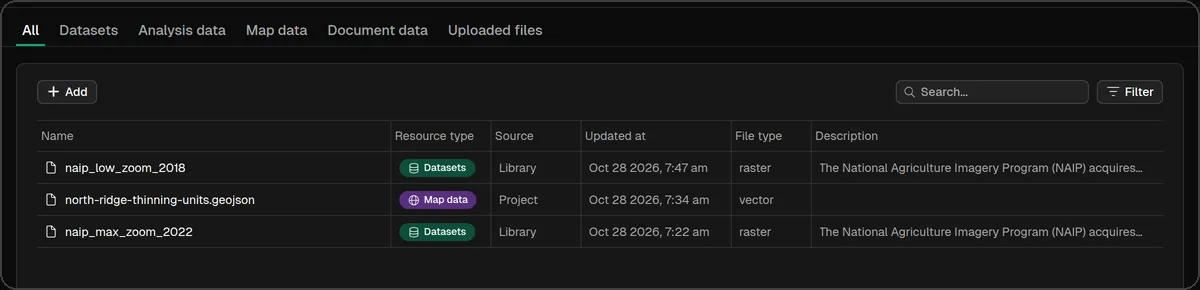
Each row shows the Resource type, the Source (Project for your uploads, Library for datasets), when it was updated and the file type.
What you can upload
Map data: GeoJSON, KML, FlatGeobuf (.fgb), shapefiles (zipped, or the .shp file with its .shx, .dbf and .prj), GeoTIFF (.tif, .tiff) and PMTiles. These become layers on the project Map.
Point clouds: LAS and LAZ.
Documents: PDF, PNG and JPEG.
Tables: CSV, XLS and XLSX.
Uploads count against your team’s storage allowance, which you can check under Settings → Limits.
Add datasets from the library
Click Add, then Resources.
In Add Resources, tick the datasets you want. The list holds the datasets Intelifore provides, such as NAIP aerial imagery, a US vector layer, USGS 3DEP lidar point clouds and the 1/3 arc-second elevation model, together with the files in your team’s Data Library. Map extent within this project keeps the list to data that covers your project area, and Filter narrows it by source or type.
Click Add. Library datasets appear in Resources with the source Library, and imagery datasets render under your layers on the Map.

Organise and filter
The tabs at the top (All, Datasets, Analysis data, Map data, Document data, Uploaded files) and Filter (vector, raster or table) narrow the list. Tick files to Move to a folder, which you create with Add → New Folder, or to Delete them. Results of analyses land under Analysis data when you tick Add to Project Resources upon success before a run.
Reuse files across projects
Files you need in more than one project belong in Data Library in the sidebar. Upload them there once; they then show up in Add Resources for every project your team works on.