Invite people from Settings → Team Members, give each of them a seat so they can work, then add them to your projects. Account Owners and Admins can send invitations.
Send an invitation
Click Invite.
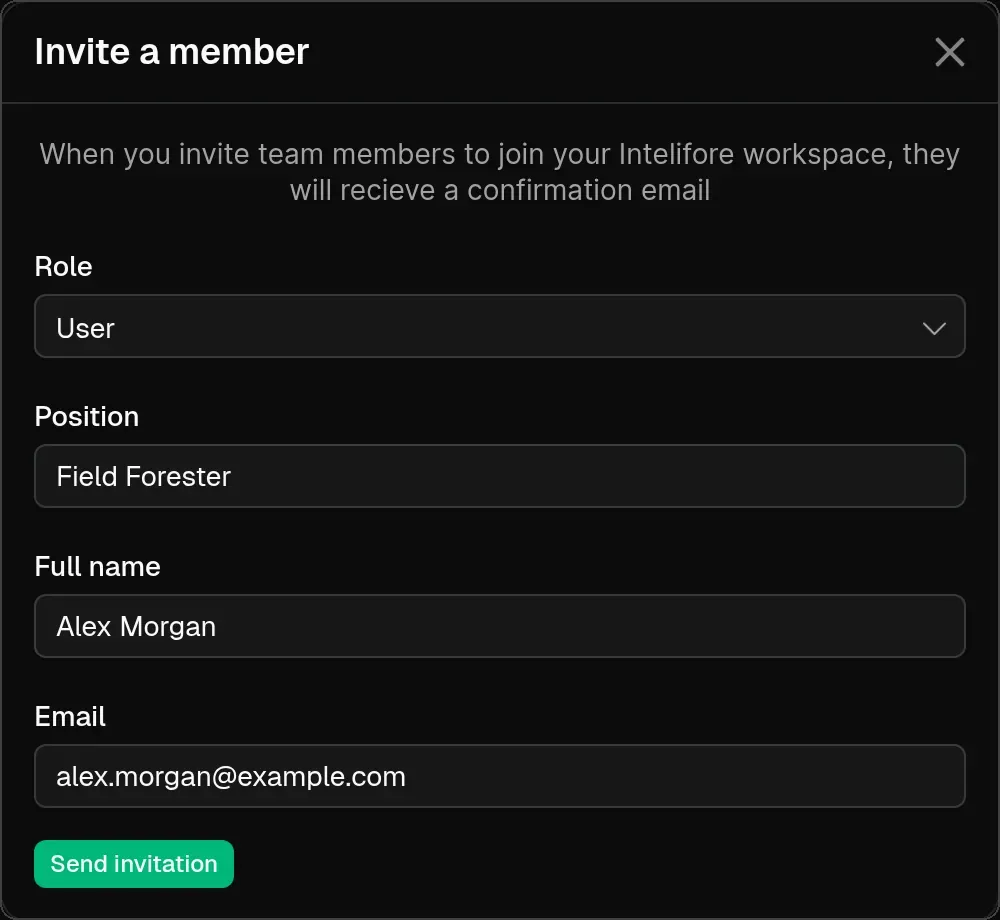
In Invite a member, enter the person’s Full name, Email, Role and Position (a job title shown to your team).
Click Send invitation. You see “Team member was successfully invited.” and the person gets an email.
Assign a seat
New members join without a seat. In their row on Team Members, set Seat to Assigned. Only the Account Owner can assign seats.

A member without a seat can view the projects they are added to, but can’t create or edit projects, tasks or documents until a seat is assigned.
Add them to projects
Teammates see only the projects they are members of. Add them in the project’s member list, or with Add member in the Details step when you create a project.
Roles
Account Owner (uses a seat): everything, plus billing, seats and vendor settings. Signing up makes you the Account Owner.
Admin (uses a seat): full project work. Can invite and manage Users and External Collaborators.
User (uses a seat): full project work, including creating and editing projects, tasks, documents and appointments.
External Collaborator (no seat): works only in the projects they are added to. Doesn’t see Templates, Data Library, Analytics Tools or the General Map.
Only the Account Owner can invite another Account Owner or an Admin. An External Collaborator’s role can’t be changed later, so invite them again with a new role if needed.
Seats and billing
During the trial you can assign as many seats as you like. Once you subscribe, you pay per assigned seat. If assigned seats ever exceed the seats you pay for, the app sends everyone to Billing until you add seats or unassign members.